BLE Gamepad Control
Control your Stackr robot wirelessly from an Android app over Bluetooth Low Energy (BLE). Stackr acts as a BLE client: it scans for a virtual gamepad device, connects to it, receives joystick updates through notifications, and drives the chassis motors with the same differential-drive math used in the RC tutorial.
Controlling Stackr with an Android App
Pair your phone with the companion Android app configured as device name SPadXXXX. When you move the right virtual stick, the app sends a six-byte packet over BLE. Stackr maps the horizontal and vertical axes to left and right motor speeds so the robot can drive forward, backward, and turn in place.
Open the Serial Monitor at 115200 baud to watch scan messages, connection status, and raw joystick values while testing.
#include "BLEDevice.h"
#include <SparkFun_TB6612.h>

#define DEV_NAME "SPadXXX"

static BLEUUID serviceUUID("56dcb94f-01c0-4a4c-8f6c-efba1b184569");
static BLEUUID    charUUID("31fd93ba-4461-49ac-8c21-c6e723564c20");

static boolean doConnect = false;
static boolean connected = false;
static boolean doScan = false;
static BLERemoteCharacteristic* pRemoteCharacteristic;
static BLEAdvertisedDevice* myDevice;

const int offsetA = 1;
const int offsetB = 1;

#define AIN1 5
#define BIN1 6
#define AIN2 4
#define BIN2 7
#define PWMA 3
#define PWMB 8
#define STBY 9

Motor motor1 = Motor(AIN1, AIN2, PWMA, offsetA, STBY);
Motor motor2 = Motor(BIN1, BIN2, PWMB, offsetB, STBY);


volatile int8_t left_horizontal = 0;
volatile int8_t left_vertical = 0;
volatile int8_t right_horizontal = 0;
volatile int8_t right_vertical = 0;

static void notifyCallback(
  BLERemoteCharacteristic* pBLERemoteCharacteristic,
  uint8_t* pData,
  size_t length,
  bool isNotify) {
    Serial.printf("%d-%d-%d-%d-%d-%d\n",
    (uint8_t)pData[0],
    (uint8_t)pData[1],
    (int8_t)pData[2],
    (int8_t)pData[3],
    (int8_t)pData[4],
    (int8_t)pData[5]);
    left_horizontal = (int8_t)pData[2];
    left_vertical = (int8_t)pData[3];
    right_horizontal = (int8_t)pData[4];
    right_vertical = (int8_t)pData[5];
    }

class MyClientCallback : public BLEClientCallbacks {
  void onConnect(BLEClient* pclient) {
  }

  void onDisconnect(BLEClient* pclient) {
    connected = false;
    Serial.println("onDisconnect");
  }
};

bool connectToServer() {
    Serial.print("Forming a connection to ");
    Serial.print(myDevice->getAddress().toString().c_str());
    Serial.print(" - ");
    Serial.println(myDevice->getName().c_str());

    BLEClient*  pClient  = BLEDevice::createClient();
    Serial.println(" - Created client");

    pClient->setClientCallbacks(new MyClientCallback());

    pClient->connect(myDevice);
    Serial.println(" - Connected to server");
    pClient->setMTU(517);

    BLERemoteService* pRemoteService = pClient->getService(serviceUUID);
    if (pRemoteService == nullptr) {
      Serial.print("Failed to find our service UUID: ");
      Serial.println(serviceUUID.toString().c_str());
      pClient->disconnect();
      return false;
    }
    Serial.println(" - Found our service");


    pRemoteCharacteristic = pRemoteService->getCharacteristic(charUUID);
    if (pRemoteCharacteristic == nullptr) {
      Serial.print("Failed to find our characteristic UUID: ");
      Serial.println(charUUID.toString().c_str());
      pClient->disconnect();
      return false;
    }
    Serial.println(" - Found our characteristic");

    if(pRemoteCharacteristic->canNotify())
      pRemoteCharacteristic->registerForNotify(notifyCallback);

    connected = true;
    return true;
}

class MyAdvertisedDeviceCallbacks: public BLEAdvertisedDeviceCallbacks {
  void onResult(BLEAdvertisedDevice advertisedDevice) {
    Serial.print("BLE Advertised Device found: ");
    Serial.println(advertisedDevice.toString().c_str());
    String dn = "";
    if(advertisedDevice.getName().c_str() != NULL)
      dn = String(advertisedDevice.getName().c_str());
    Serial.println(dn);

    if (dn.equals(DEV_NAME) && advertisedDevice.haveServiceUUID() && advertisedDevice.isAdvertisingService(serviceUUID)) {
      BLEDevice::getScan()->stop();
      myDevice = new BLEAdvertisedDevice(advertisedDevice);
      doConnect = true;
      doScan = true;
    }
  }
};


void setup() {
  Serial.begin(115200);
  Serial.println("Starting Arduino BLE Client application...");
  BLEDevice::init("");

  BLEScan* pBLEScan = BLEDevice::getScan();
  pBLEScan->setAdvertisedDeviceCallbacks(new MyAdvertisedDeviceCallbacks());
  pBLEScan->setInterval(1349);
  pBLEScan->setWindow(449);
  pBLEScan->setActiveScan(true);
  pBLEScan->start(5, false);

  pinMode(LED_BUILTIN, OUTPUT);
  digitalWrite(LED_BUILTIN, HIGH);
  delay(1000);
  digitalWrite(LED_BUILTIN, LOW);
}


void loop() {
  if (doConnect == true) {
    if (connectToServer()) {
      Serial.println("We are now connected to the BLE Server.");
      digitalWrite(LED_BUILTIN, HIGH);
    } else {
      Serial.println("We have failed to connect to the server; there is nothin more we will do.");
    }
    doConnect = false;
  }

  if (connected) {
    String newValue = "Time since boot: " + String(millis()/1000);
    int direction = map(right_horizontal,-128,127,-255,255);
    int speed = map(right_vertical,-128,127,-255,255);

    int left_speed  = constrain(speed + direction, -255, 255);
    int right_speed = constrain(speed - direction, -255, 255);
    motor1.drive(right_speed);
    motor2.drive(left_speed);

    pRemoteCharacteristic->writeValue(newValue.c_str(), newValue.length());
  }else if(doScan){
    BLEDevice::getScan()->start(0);
  }
}
Code Breakdown
Libraries: The ESP32 BLE stack (BLEDevice.h) handles scanning, connecting, and communication with the Android app using BLE. The SparkFun TB6612 library drives the onboard motor controller. It is the same driver used in other Stackr sketches.
#include "BLEDevice.h"
#include <SparkFun_TB6612.h>
Device name: DEV_NAME must match the Bluetooth device name configured in the Android gamepad app, the same string the phone displays at the top of the gamepad screen. Open the app and copy the device name shown there into your sketch (see screenshot below). The service and characteristic UUIDs identify the GATT endpoint that carries joystick data. Both sides of the link must use the same UUIDs. The ones already set in this program match the ones in the Android App.
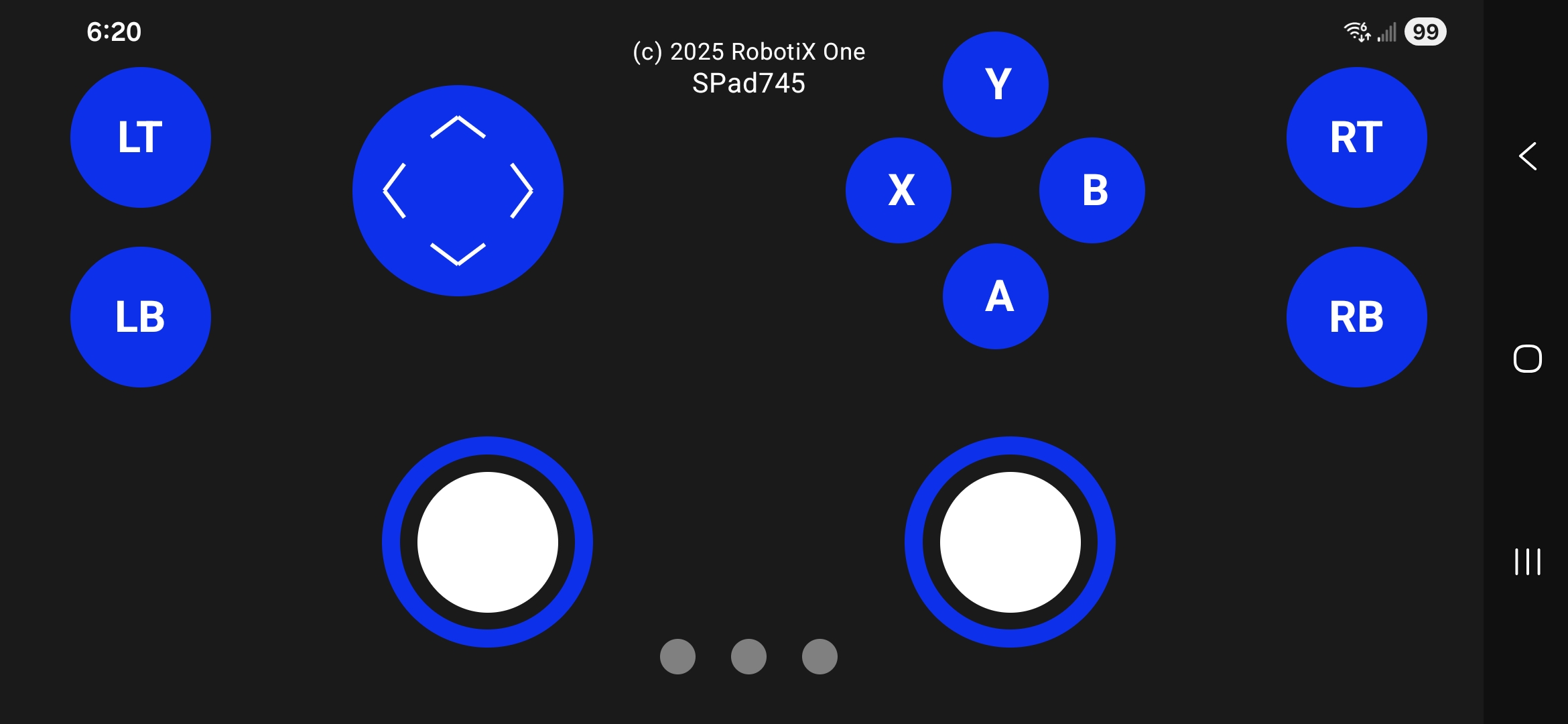
DEV_NAME in your Arduino code (for example, SPad745).#define DEV_NAME "SPadXXX"
static BLEUUID serviceUUID("56dcb94f-01c0-4a4c-8f6c-efba1b184569");
static BLEUUID charUUID("31fd93ba-4461-49ac-8c21-c6e723564c20");Connection state flags: These globals coordinate the asynchronous BLE workflow. doConnect triggers a connection attempt after a matching device is found. connected tracks whether notifications are active. doScan tells loop() to resume scanning after a disconnect.
static boolean doConnect = false;
static boolean connected = false;
static boolean doScan = false;
static BLERemoteCharacteristic* pRemoteCharacteristic;
static BLEAdvertisedDevice* myDevice;
Motor wiring: Pins connect to the TB6612 direction, PWM, and standby lines. offsetA and offsetB set each motor's forward direction inside the library. motor1 drives the right wheel; motor2 drives the left wheel—matching the RC control tutorial.
#define AIN1 5
#define BIN1 6
#define AIN2 4
#define BIN2 7
#define PWMA 3
#define PWMB 8
#define STBY 9

Motor motor1 = Motor(AIN1, AIN2, PWMA, offsetA, STBY);
Motor motor2 = Motor(BIN1, BIN2, PWMB, offsetB, STBY);
Joystick variables: Four volatile int8_t values store the latest stick positions in the range −128 to +127. They are updated inside the BLE notification callback, which can run while loop() is executing, so volatile ensures the main loop always reads fresh values.
volatile int8_t left_horizontal = 0;
volatile int8_t left_vertical = 0;
volatile int8_t right_horizontal = 0;
volatile int8_t right_vertical = 0;
Notification callback: Each time the phone sends a notification, the app delivers a six-byte payload. Bytes 0 and 1 are printed for debugging. Bytes 2–5 hold left horizontal, left vertical, right horizontal, and right vertical stick values. This sketch uses only the right stick for driving.
left_horizontal = (int8_t)pData[2];
left_vertical = (int8_t)pData[3];
right_horizontal = (int8_t)pData[4];
right_vertical = (int8_t)pData[5];
Client disconnect handler: When the phone closes the BLE link, connected is cleared so the main loop can restart scanning and attempt to reconnect.
Connecting to the gamepad: connectToServer() creates a BLE client, connects to the advertised device, requests a large MTU for bigger packets, locates the service and characteristic by UUID, and registers notifyCallback so joystick updates arrive automatically.
Scan callback: While scanning, every discovered device is logged. When a device named SPadXXX advertises the expected service UUID, scanning stops and doConnect is set so loop() opens the connection on the next pass.
Setup: Serial debug starts at 115200 baud. BLE is initialized with an empty local name because Stackr is the client, not the server. Scan interval and window values control how aggressively the radio searches. The built-in LED blinks once at startup to confirm the sketch is running.
Main loop — connect: When a matching gamepad is found, connectToServer() runs once. Success turns the LED on; failure is reported on Serial.
Main loop — drive: While connected, the right stick is mapped from −128…127 to motor speeds −255…255. Differential drive combines forward speed and turn direction:
speedcomes fromright_vertical(forward/back)directioncomes fromright_horizontal(left/right)left_speed = speed + directionright_speed = speed - direction
int direction = map(right_horizontal, -128, 127, -255, 255);
int speed = map(right_vertical, -128, 127, -255, 255);

int left_speed  = constrain(speed + direction, -255, 255);
int right_speed = constrain(speed - direction, -255, 255);
motor1.drive(right_speed);
motor2.drive(left_speed);
Characteristic write-back: Each loop iteration also writes a short text string (Time since boot: …) to the same characteristic. This keeps the BLE link active and confirms two-way communication with the app.
Reconnect after disconnect: If not connected and doScan is true, scanning restarts so Stackr can find the phone again when the app comes back in range.